What is Portfolio Slicer for Power BI and how to use it
Overview
Portfolio Slicer for Power BI (abbreviation: PSfPBI) is an alternative interface for viewing your investment reports outside Excel. PSfPBI uses exactly the same source data as Portfolio Slicer, but all data is loaded not into Excel’s PowerPivot data model, but into an alternative Power BI data model. Both models use the same engine.
PSfPBI allows you to view your investment reports in:
Power BI Desktop. This is an application created by Microsoft to build and view reports for Power BI data models. Data refresh in this application is usually much faster than Portfolio Slicer data refresh in the Excel workbook, for example about10 secversus50 secin Excel.- Any web browser. You can use any web browser to view, interact with, or even build your own Portfolio Slicer reports on the
Power BIservice. Power BI Mobileon Windows, Android, or iOS (iPhone,iPad). You can install this application on your phone or tablet to view and interact with your investment reports.
Portfolio Slicer for Power BI comes as a .pbix file that can be opened in Power BI Desktop. This file contains the Portfolio Slicer data model with over 40 pre-built reports. The model is almost identical to the Portfolio Slicer data model in the Excel file. Many of these reports are similar to the Portfolio Slicer reports available in Excel.
After you configure this .pbix file to use your Portfolio Slicer Excel workbook data and your external data files, these reports will show your investment data and you will be able to publish them to the Power BI service.
Power BI Report Screenshots
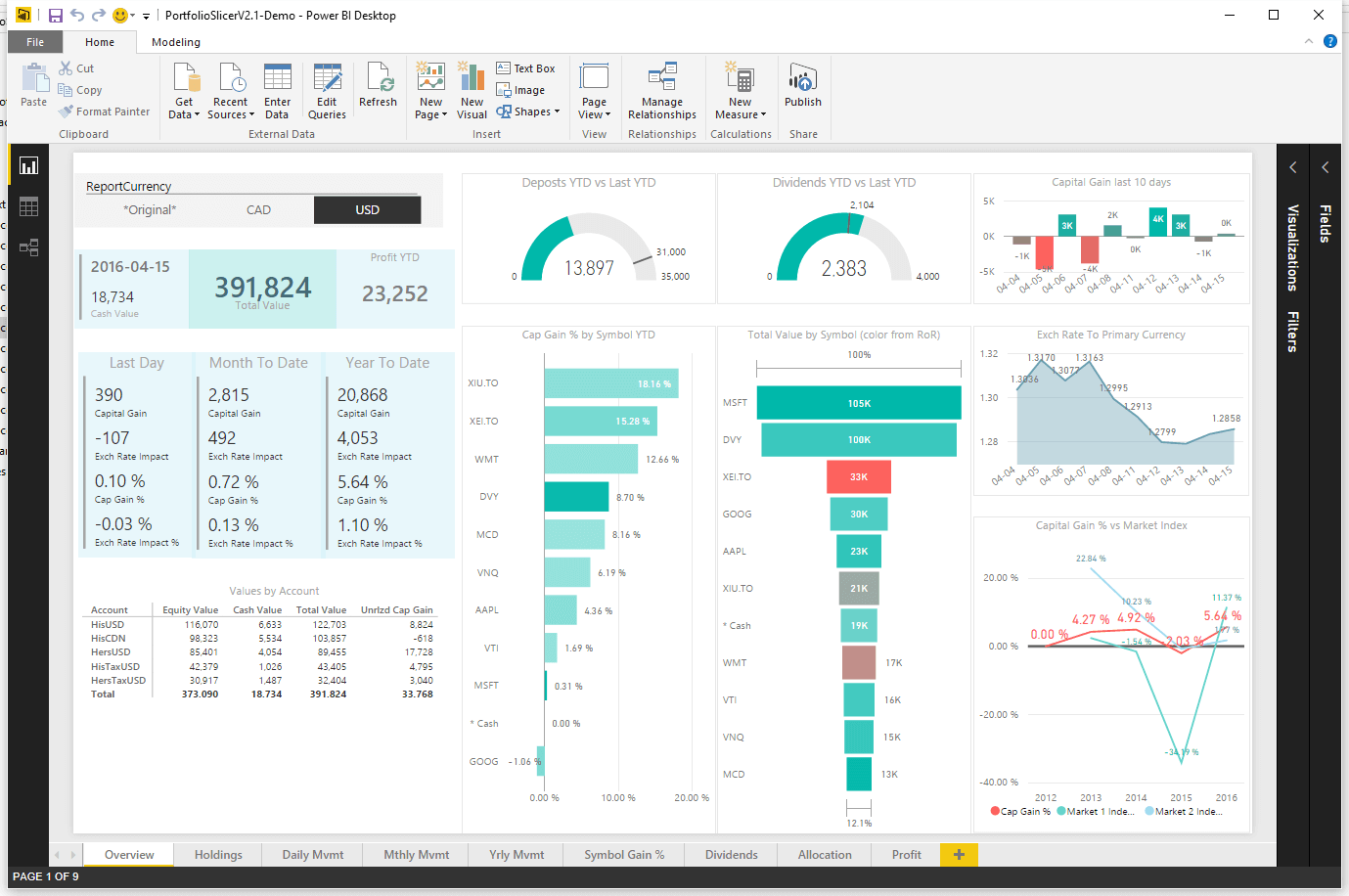
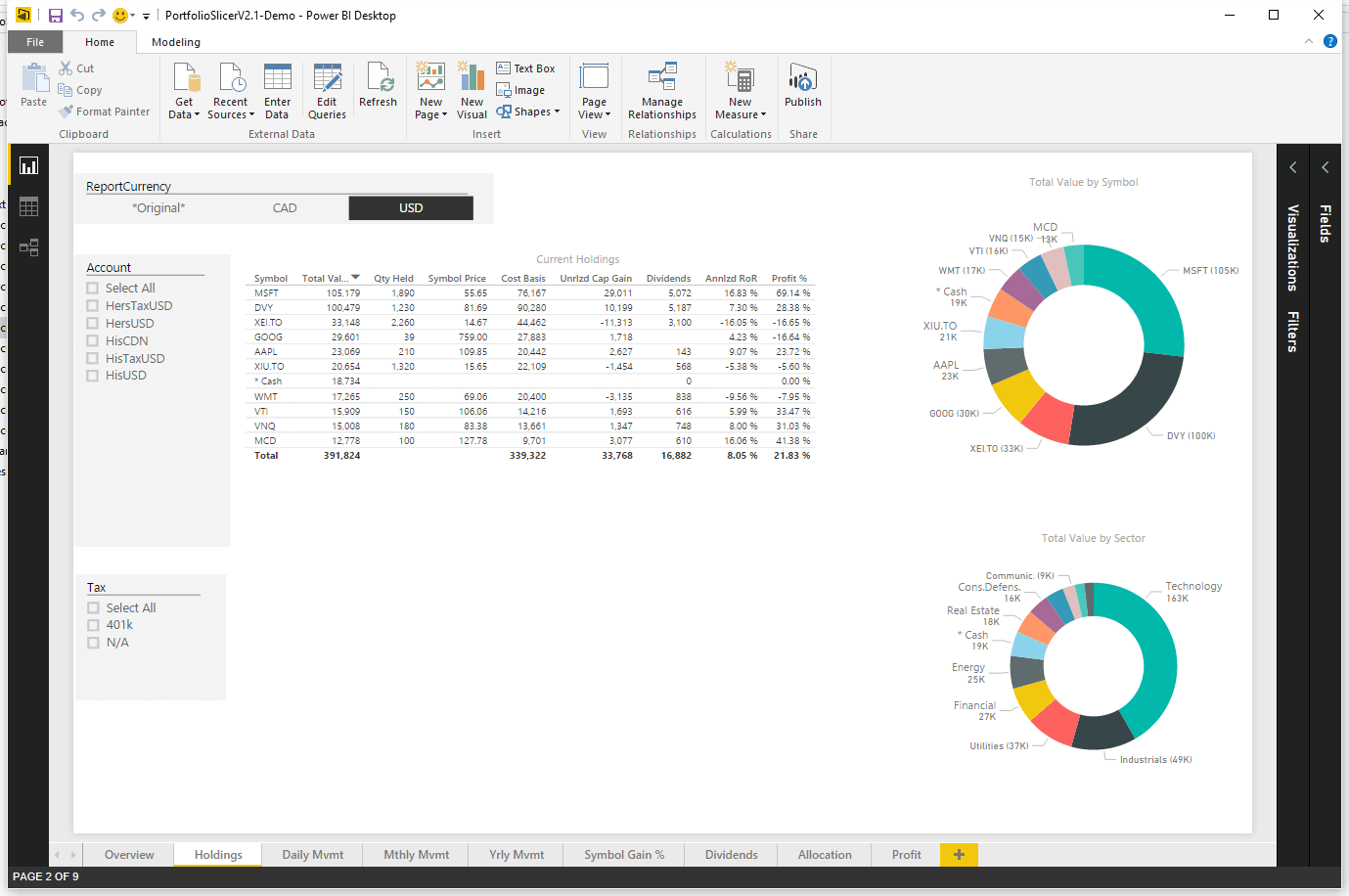
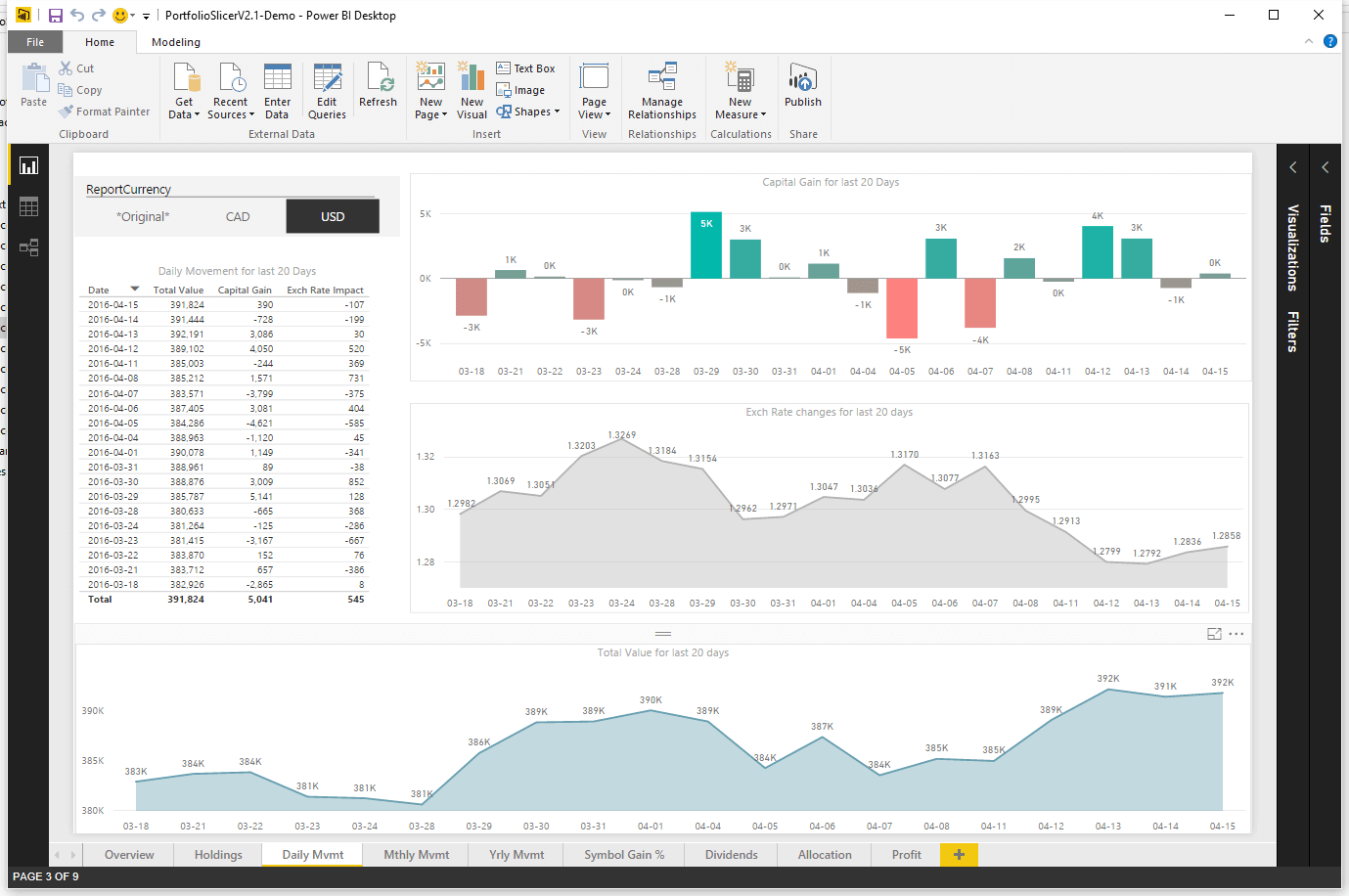
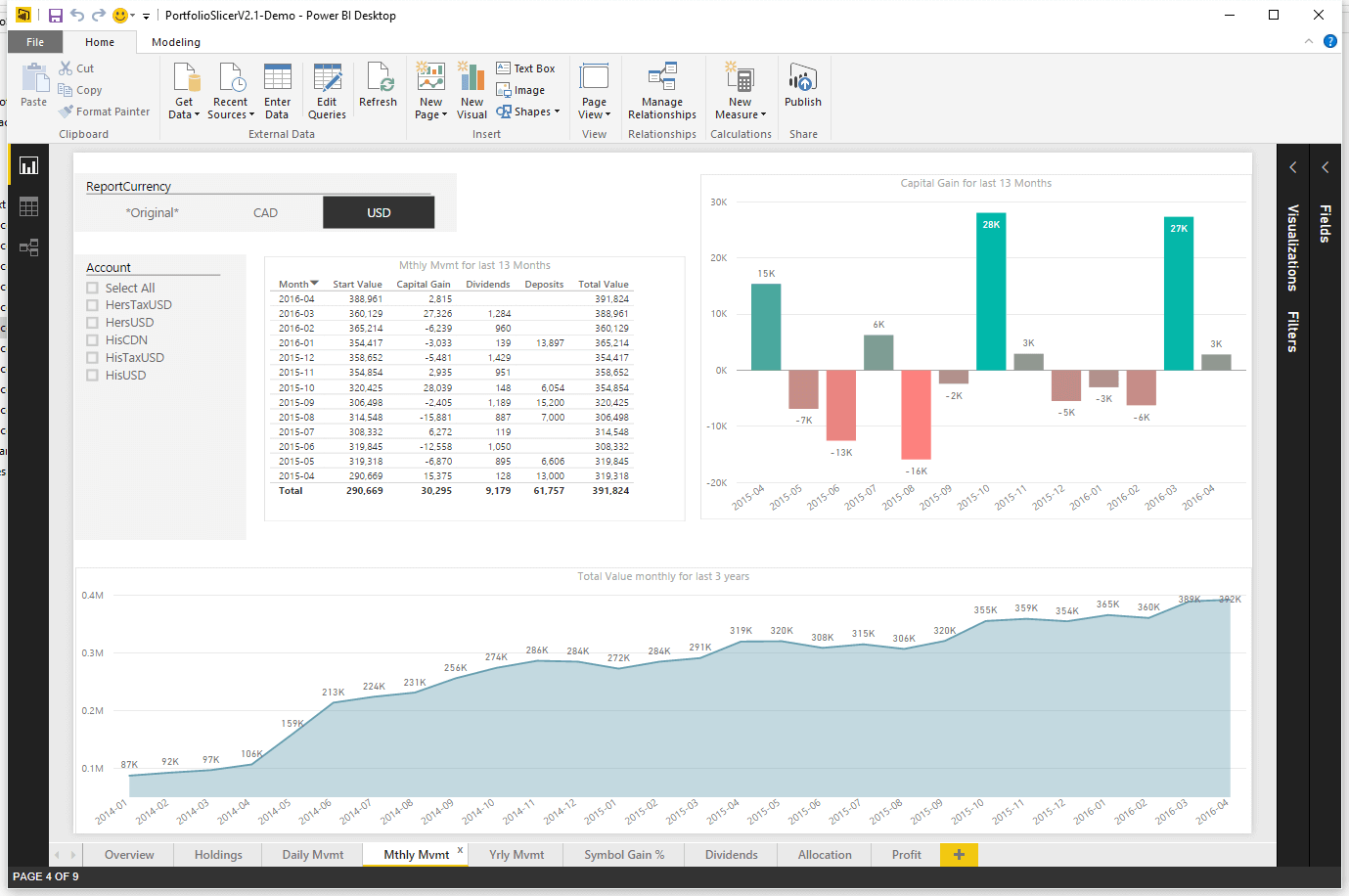
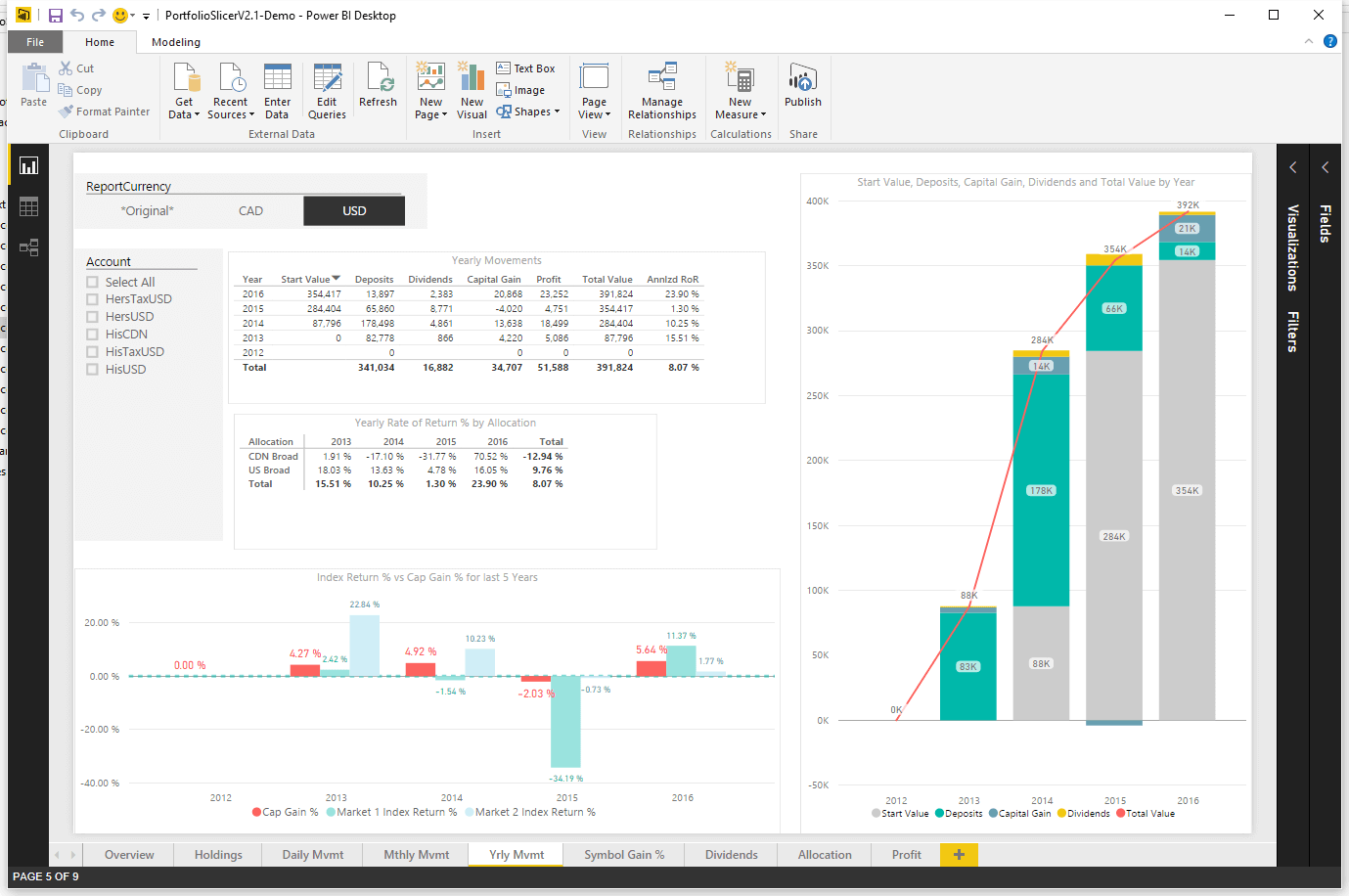
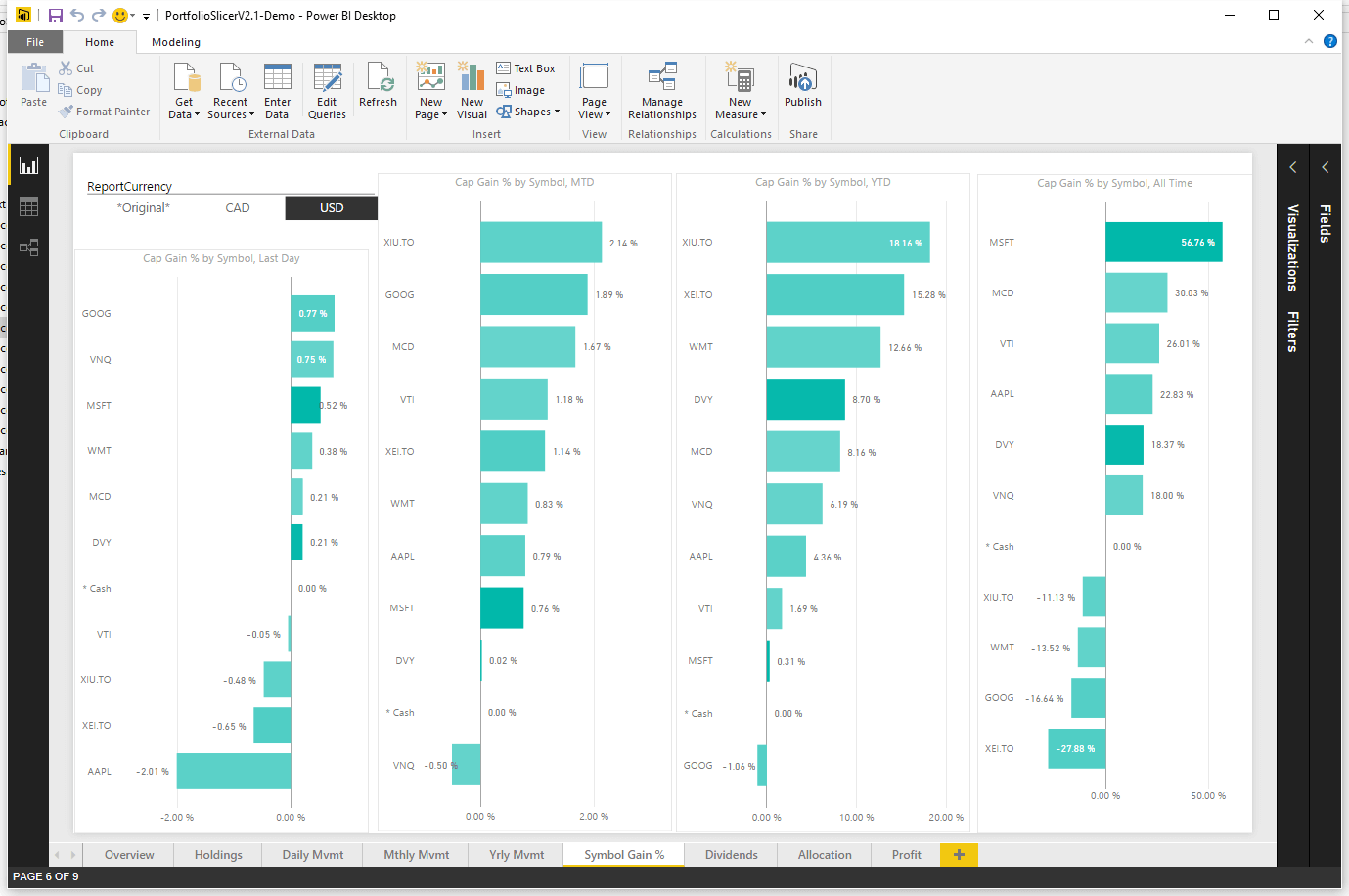
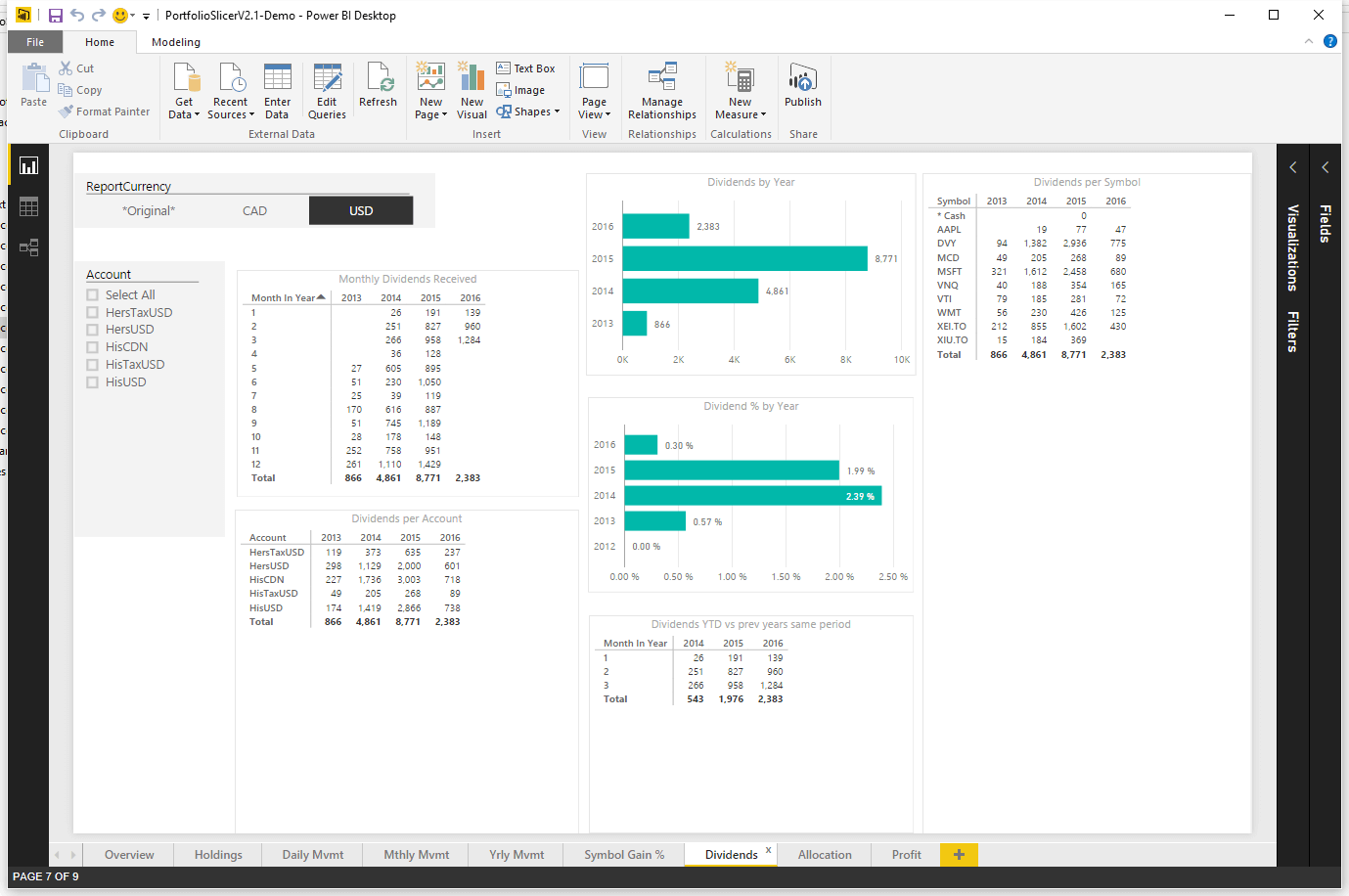
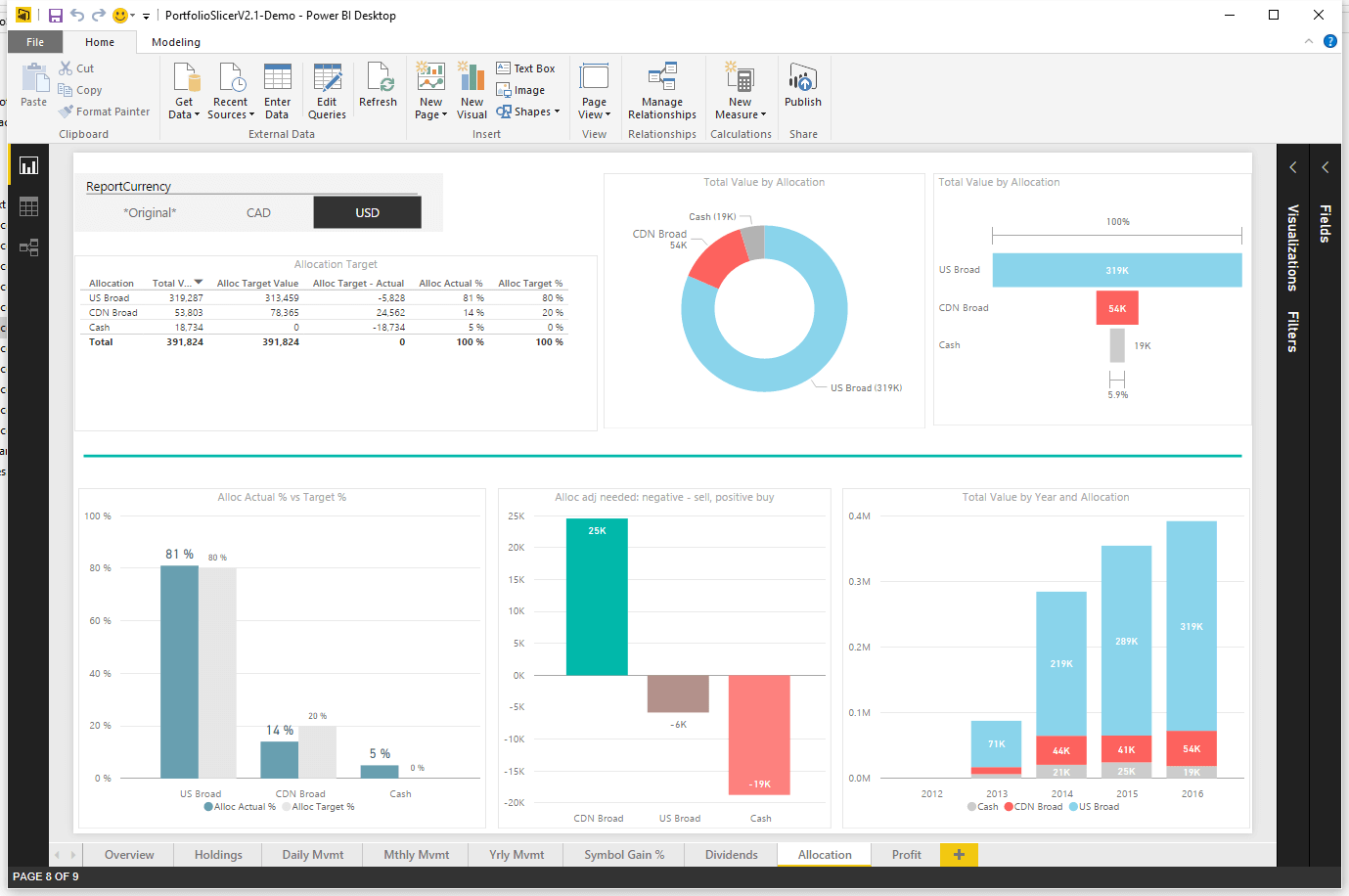
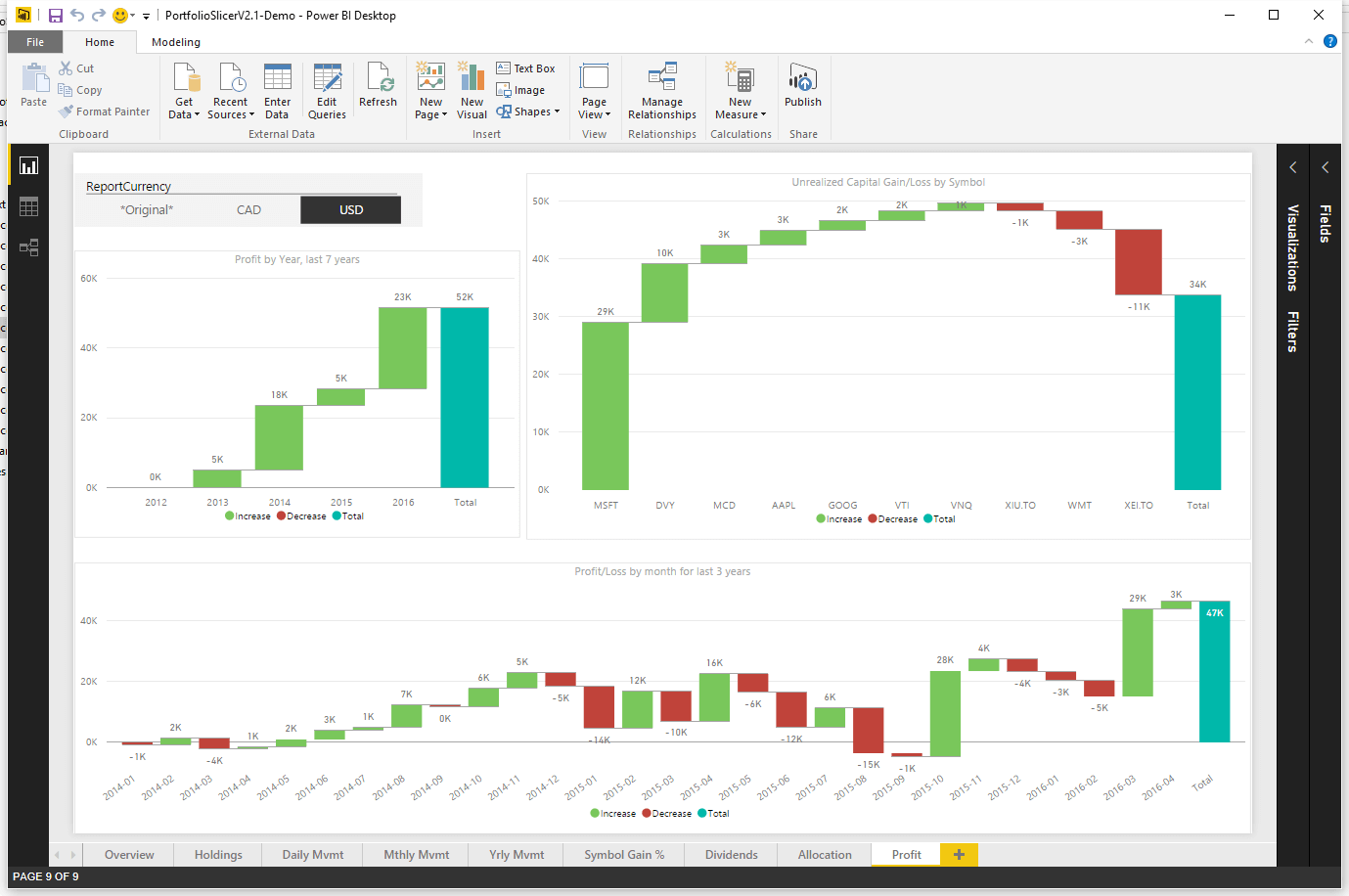
How to Use Portfolio Slicer for Power BI
- Download and install Microsoft
Power BI Desktop. - Download the Portfolio Slicer for Power BI file. Unzip the file, then right-click it, open
Properties, and chooseUnblockif needed. Open the file inPower BI Desktopby double-clicking it. - Configure Portfolio Slicer for Power BI so the model connects to your external data files and your Excel file.
- Refresh your data in
Power BI Desktopby clicking theRefreshbutton on theHomemenu. You should notice that data refresh in this application is much faster than Excel refresh. Usually refresh takes about10 sec. - If you want to view your investment reports in a web browser or on a phone or tablet, create an account for the Power BI service.
- Publish your Portfolio Slicer for Power BI model with your investment data to the
Power BIservice. After this step, you will be able to see your reports in any web browser in thePower BIservice. - If you plan to view your reports on mobile devices, it is recommended that you create a Power BI dashboard by pinning the investment reports you want to one or more dashboards. These dashboards make selected reports easier to access.
- On your iOS or Android device, download the free Microsoft
Power BI Mobileapplication. Sign in with the same account you created while registering in thePower BIservice, and you will see your investment reports. - If you have a computer that is on most of the time, you can schedule external data updates and also schedule your data refresh on the
Power BIservice. With this type of refresh schedule, you can always see up-to-date portfolio information on your phone or tablet. To schedule Portfolio Slicer updates, you need aPower BI Prosubscription.
Portfolio Slicer for Power BI Demo
Below is a demo of Portfolio Slicer for Power BI. This is an interactive demo. You can click slicers or select part of a chart to filter other report elements.